How to give your team's Claude artifacts a shared database
You built a CRM with Claude and it worked, until a teammate opened it and the pipeline was empty. Where the records behind an AI-built app should live.
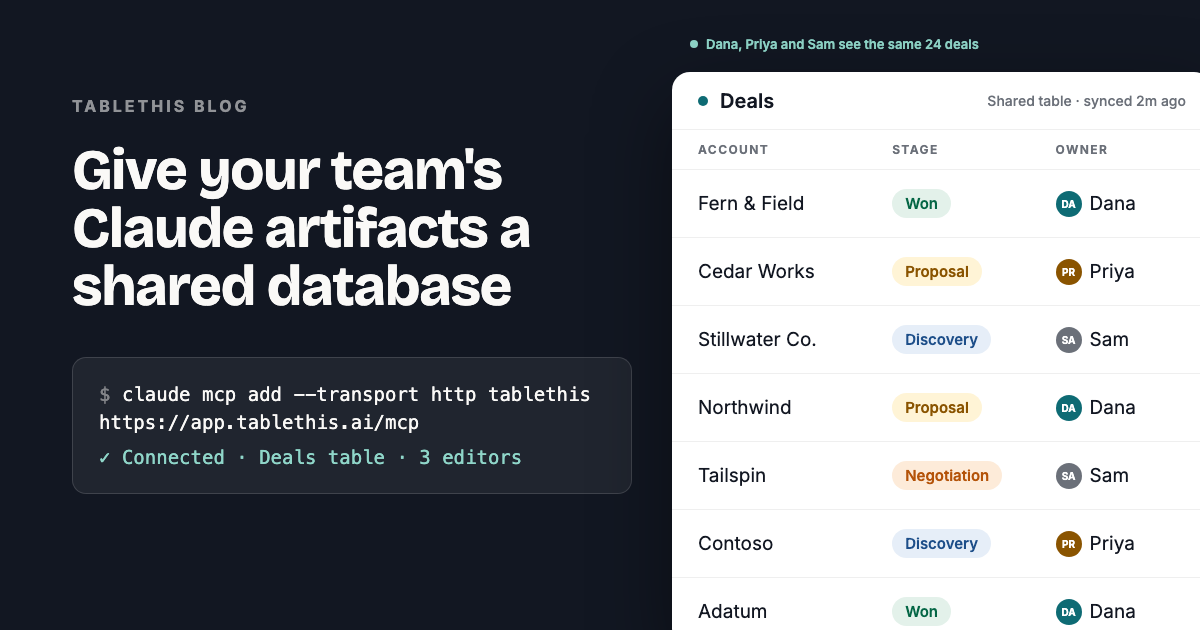
You asked Claude for a small CRM. It worked. It listed deals, showed a stage on each one, and had a button that moved a deal from Proposal to Won.
Then you sent the link to your team, and the first reply was a question you had not thought about. Where do I add a deal?
The app was never the problem. Its data was. The pipeline lived inside one person’s copy of one page, so there was nowhere for a second person to put anything.
Four places the records go, and why each one breaks
People try the same four things, and all four fail at the same moment: when a second person opens the app.
Leave them in the artifact. The pipeline works for whoever has the page open. Reload it and the deals are gone. Your teammate opens the same link and sees nothing.
Write them to a file. A JSON file has no types, so a stage of Wonn can sit next to Won. It has no history, so nobody can tell which spelling came first. And it lives on one laptop.
Export to a spreadsheet. Now everyone can see the data. But to change a row, the app has to download the file, edit it, and upload it again. Sharing is per file, so you cannot say that Priya owns the enterprise accounts and Sam does not. If two people save at once, one of them loses their work.
Paste it back into the chat. Your assistant has the context. Your teammate still does not.
Keep the app. Give the records a home.
You do not rebuild what you made. The artifact stays the interface your team uses, with the layout, the buttons, and the way a deal reads at a glance. What changes is where its data lives.
TableThis is that home: a lightweight shared database for the apps you build with Claude or Codex. It holds typed tables of records with a change history, your app reads and writes them through an MCP connector, and there is no server for you to run.
Two steps get you there. Create a table in TableThis with typed fields. Then connect your assistant once, and the app reads and writes that table instead of holding the data itself.
Design the table first
Spend a few minutes on this before you connect anything. The reason to pick a field type is simple: a wrong value should be impossible to enter.
| Type | Use it for | What it refuses |
|---|---|---|
| Short text | Account names, contacts, deal titles | Nothing. This is the permissive one |
| Long text | Notes, call summaries, pasted detail | Nothing, but it stays out of exact-match filters |
| Date | Close dates, next steps, due dates | Anything that is not a date |
| Checkbox | Done or not done | Anything that is not yes or no |
| Status | The deal stages you define | Any value outside your list |
| User | A deal owner, an approver, a reviewer | Anyone who is not a member of the workspace |
The status type earns its place. You list the stages once, and the field accepts nothing else. Won, won, and Closed won cannot become three stages by accident. That one choice is the difference between a pipeline you can count and a column of near misses.
The user type stores a real member of the workspace, so the owner column holds a person you can ask, rather than a string that happens to say Dana.
One more thing you get without asking for it: the app works from each field’s permanent id, and the column name is only a label. Rename Stage to Status later and the app keeps working.
Connect once
In Claude Code, it is one command:
claude mcp add --transport http tablethis https://app.tablethis.ai/mcpIn Claude on the web or in the desktop app, open Settings, then Connectors, then Add custom connector, and paste the same address. The connector setup guide has the same steps for ChatGPT, Cursor, and other clients.
You do not need an account first. The client sends you to TableThis to sign up or log in, then drops you back with the connection made. A new account gets a free workspace with 100 MB of storage and no card, which is plenty for a table like this one.
The screen you land on asks you to approve permissions. Two of them matter here.
- Edit right away. Grant this when the app should save a change the moment someone clicks.
- Suggest changes for you to approve. Grant this when the app should propose a change and wait for a person.
The second is the safer default while you are still tuning the schema. You lose nothing by starting there, and you can widen it later.
How the app behaves once it is connected
Ask your assistant to point the app at the table. From then on it loads a page of deals, moves a deal the moment someone clicks, and picks up deals a teammate added on another machine. The details below are what make that feel solid. Your assistant already knows them, and the list of tools an app can call has the rest.
What happens when someone clicks a stage?
The screen moves immediately, and one write goes to the table in the background. The write carries the record, the field, the value the app expects to replace, the new value, and a one-line reason. Every write in TableThis is recorded with a reason, whether a person or an assistant made it.
How does the app stay current without reloading?
It asks the table for everything that changed since the last time it looked, using a position marker from the previous check, instead of re-reading the whole table every few seconds. That is how a pipeline someone left open picks up a deal added on another machine.
Does a quick edit skip the rules?
No. A single-cell edit passes the same permission checks and the same conflict checks as a change that waits for review, and it lands in the same history. A fast write is not a privileged one.
What stops the app hammering the table?
Typing never writes. Only leaving the cell or pressing Enter does, and both go through one path, so a click and a keypress cannot write twice. Only one write is in flight per cell, and if someone keeps typing while it syncs, only the last value is kept.
What changes for your teammate
They open the same app, add a deal, and it is in the pipeline for everyone. Nobody downloads a file. Nobody waits for you to be online.
When two people touch the same deal, the one who moved second gets a conflict instead of silence. A lost edit becomes a visible event.
And a requirement you captured while working with Claude is there when you open Codex, because both read the same table instead of a transcript you carry between them.
Before and after
| App on its own | App with a shared table | |
|---|---|---|
| A teammate opens it | An empty pipeline | The same pipeline |
| Reload or a new session | The records are gone | The records are still there |
| A value typed wrongly | Stored as typed | Refused by the field type |
| Two people edit one deal | One edit is lost | The conflict is reported |
| Who moved this deal to Won | Unknown | Named in the change history |
| Only some people can edit | Not possible | A named editor list on the table |
| Renaming a column | Breaks the app | The app reads field ids |
Questions people ask
Do I have to rebuild the artifact?
No. The app keeps its layout and buttons. You ask your assistant to read and write a TableThis table instead of holding the data inside the page.
Can I use this with Codex or ChatGPT instead of Claude?
Yes. Any client that supports remote MCP with OAuth can connect, and two clients connected to the same workspace see the same records.
Is TableThis a database?
It works as one for your app: typed tables of records with a change history, read and written through the MCP connector. You do not run a server or write a schema.
What if two people edit the same deal at once?
The write that arrives second names a value that is no longer there, so it is refused as a conflict. The response carries the value that won, and the app corrects its screen from that without re-reading the table. Nobody’s edit disappears in silence.
Where to go next
- Company knowledge base for AI assistants: one doc, not a prompt covers the other half of the workspace: the process documents your assistants read and your apps render.
- AI agent permissions for internal tools: roles, approvals, and undo is the one to send whoever has to sign off.