AI agent permissions for internal tools: roles, approvals, and undo
Who can change this, what can an assistant do on its own, and what happened at 4pm yesterday. Three controls an IT lead can switch on for an AI-built app.
Your CRM shows a stage change nobody remembers making. The Cedar Works deal moved from Proposal to Won at 4pm yesterday.
Was it Dana, or the agent, or you last Tuesday? Nobody can say.
An app you built with Claude or Codex writes to shared records. That is the point of it. TableThis is where those records live: a shared workspace for typed tables and Markdown documents.
What IT needs is three questions answered: who can change this, what is an assistant allowed to do on its own, and what happened yesterday afternoon. Each has a specific answer here, and most of them are controls you switch on rather than habits you ask people to keep.
Three checks, and an assistant passes all of them or none
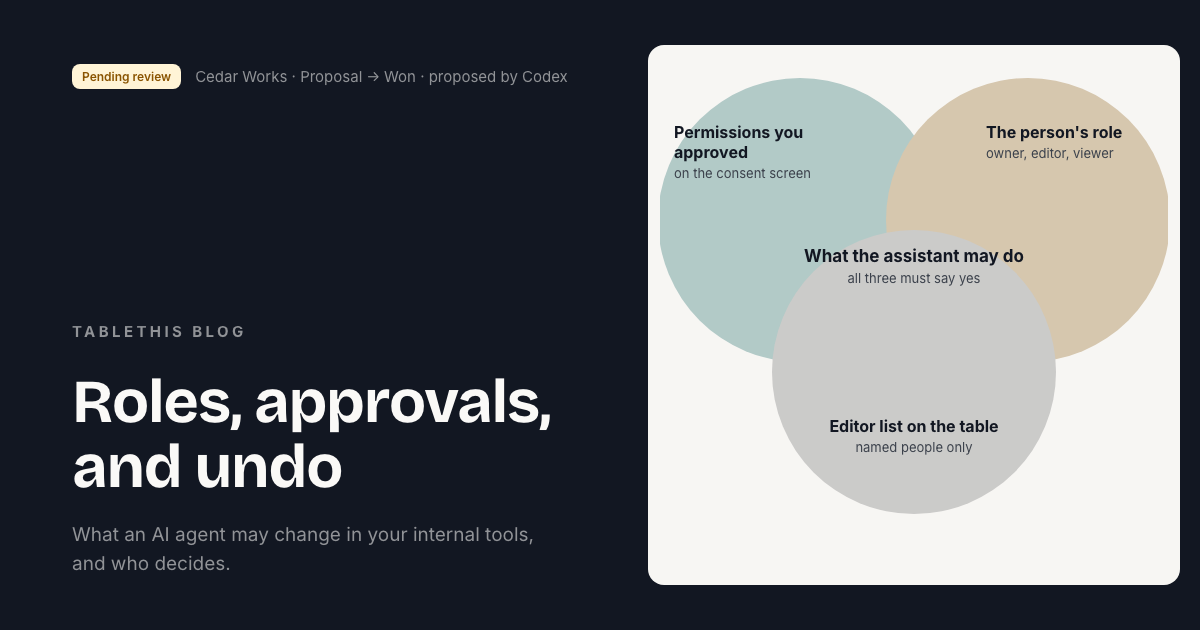
Most tools answer “what is this agent allowed to do” with a permission list attached to the agent. TableThis checks three things on every call, and an assistant can only do what all three allow.
- The permissions the person approved when they connected the app.
- The person’s role in the workspace. An assistant can never be stronger than the person it works for.
- The access on that specific table or document. A named editor list narrows who can write, whatever the first two say.
So a viewer who connects Claude gets an assistant that can read. Handing that app more permissions changes nothing, because the second check still says viewer.
Roles: what a person can do
Every member of a workspace holds one of three roles. The role is the ceiling for everything they do, including everything an assistant does on their behalf.
| Action | Owner | Editor | Viewer |
|---|---|---|---|
| Read records and documents | yes | yes | yes |
| Connect an assistant | yes | yes | yes |
| Edit records and table structure | yes | yes | no |
| Review and approve proposed changes | yes | yes | no |
| Invite members and manage access | yes | no | no |
| Manage email domains and workspace settings | yes | no | no |
| Remove a field that already holds data | yes | no | no |
| Archive or delete the workspace | yes | no | no |
Two rows surprise people. Every role can connect an assistant, including a viewer, because the connection inherits the role of the person connecting. Blocking a viewer from connecting would protect nothing. And only an owner can manage access. Editors do the work of the workspace, but they cannot change who else is allowed to write.
Permissions: what one connection may be asked to do
Roles decide what a person can do. Permissions decide what one connection may do, and you approve them on the consent screen when you connect. In plain terms, the choices are:
- See tables, records, history, and pending changes.
- See documents and folders.
- Edit tables and records right away.
- Edit documents right away.
- Suggest record changes for a person to approve.
- Suggest changes to tables and fields.
- Approve or reject suggested changes.
- Apply approved changes.
- Add or remove members, grant owner access, and turn company-domain sign-in on or off.
The shape of that list is the governance model. Reading is one permission. Writing straight away is a second. Suggesting a change is a third, and it is different from approving one, which is different again from applying it.
An app that only displays your policy can be given read access and nothing else. An app that should never write on its own can be limited to suggesting, and its changes arrive as proposals. You choose this when you connect, without hunting for a setting in an admin panel.
Which permissions can a scheduled assistant never hold?
A scheduled or always-on assistant, like a nightly job, is refused five permissions when it connects, whatever its owner’s role is: edit tables right away, edit documents right away, approve or reject changes, apply changes, and manage members. There is no setting to get wrong. It can read and it can suggest, and that is all.
Why do interactive apps get a smaller list?
An app that asks to edit right away is not also offered the two suggesting permissions, because suggesting adds nothing beside immediate writes. It keeps review and apply, so the owner’s own connection can clear a pending change without opening a browser.
Approvals: propose, review, apply
Proposals are the control that matters most for an app that writes, and they are three separate steps.
Propose. The assistant creates a pending set of changes with a written reason. Each change names the value it expects to replace, so a proposal made against stale data cannot land. Nothing takes effect yet.
Review. A person approves, rejects, or amends each change. Amending creates a new pending version, with the reviewer’s edit recorded as their own. Reviewing alone changes no data.
Apply. Approving and applying are separate steps with separate permissions. A person can approve a change now and have it applied later.
A scheduled assistant can never review its own proposals.
Restrict a table or document to named people
By default, any editor or owner can edit anything in the workspace. That is fine for a first table and wrong for a payroll one.
An owner can set an editor list on a table, a document, or a folder. Three rules are enforced:
- Open clears the list and returns the item to the workspace default.
- Restricted needs a list of people, and every name must already be an editor or owner. A list naming someone who could not edit anyway is refused rather than quietly trimmed.
- Proposals need editors. A table where no person may edit and the assistant may not either is a dead end, so it is refused.
Nobody loses the ability to read something they could already see. Folders pass a restriction down to everything inside them. And when an assistant is refused, the refusal says which item, who the editors are, and whether the rule came from the folder, so the assistant can tell the person who to ask.
Changing access is itself a recorded event. “Who removed Priya from that table, and when” has an answer.
The audit trail and undo
Every write is recorded with the record, the field, and the actor. Writes from an assistant also carry its stated reason. That covers a person editing a cell in the app and an assistant editing it through the connector. The history has no gap where the agent worked. You read it as the history of a table, of a single record, or of a document, and an assistant can read the same history, so “what changed yesterday” gets an answer drawn from the same events you would read yourself.
How is the audit trail stored?
Each event holds the permanent facts: who acted, from where, what they touched, the request it belonged to, and the time. The values that changed are stored separately, and each event points at its values. That split exists so a sensitive value can be erased later without touching the record that the change happened. Blanking what a cell said and erasing the evidence that it changed are different operations, and only the first is possible. Event rows are never edited or deleted. The one exception is a table moving to another workspace, when its events move with it inside the same transaction.
Undo is a new change that reverses the old one. The original stays in the history and the undo sits beside it. The undo also names the value it expects to reverse, so if someone has changed that cell since, the undo is refused as a conflict instead of overwriting newer work.
A person’s undo applies immediately. An assistant’s undo arrives as a proposal for a person to review, so an agent cannot quietly unwind a decision a person made.
How the connection itself is secured
Every assistant connects through OAuth 2.1, the same kind of sign-in you approve when a tool asks for access to your calendar. The parts that matter are enforced rather than optional: the code exchange uses PKCE with the weaker method never accepted, redirect addresses must match exactly, authorization codes are single-use and short-lived, and refresh tokens rotate on every use. If a refresh token is ever replayed, the whole chain it belongs to is revoked. A token issued for one resource is not accepted at another. Only hashes of codes and tokens are stored, so a copy of the database does not contain a usable credential.
What an app can never do
- Act with more power than the person who connected it.
- Edit, review, or apply directly if it is a scheduled or always-on client.
- Permanently delete a workspace. Archiving is reversible, so an assistant can do that. Deletion is not exposed to one at all.
- Manage membership or access without an owner’s permission.
- Keep its access after the person’s own access is gone. Revoking one of a person’s assistants revokes all of them in that workspace, and reconnecting does not clear the block.
Questions people ask
Can an assistant give itself more access?
No. Its access is the overlap of the permissions approved at connection, the role of the person who connected it, and the editor list on the item. Only an owner can change the last two.
Can I require a person to approve every change an app makes?
Yes. Connect the app with suggest-only permission, or turn on proposals for the table. Every write then waits in the review queue.
Does the audit trail show what an assistant changed, or only people?
Both, in the same history, with the same detail: who, what, and when.
Where to check this yourself
The permissions screen and the list of tools an assistant can call are in the docs. The rules are checked on every call, and a write re-checks them inside the same transaction, so nothing in this post is stronger than what you will read there.
- How to give your team’s Claude artifacts a shared database is the version to send the team building the app.
- Company knowledge base for AI assistants: one doc, not a prompt covers the documents half of the same controls.